Review what was kept and removed
Check what Agnos kept and removed in each file, see the rule behind every removal, and decide what goes into the export.
Open a file
Choose Review along the top of the project.
Choose the file under File.
Choose Kept to see what goes into the export, or Removed to see what Agnos took out.
A line under the controls gives the file's totals. If Agnos could not read part of the file, such as a hidden sheet, a Worth knowing box above the totals says so.
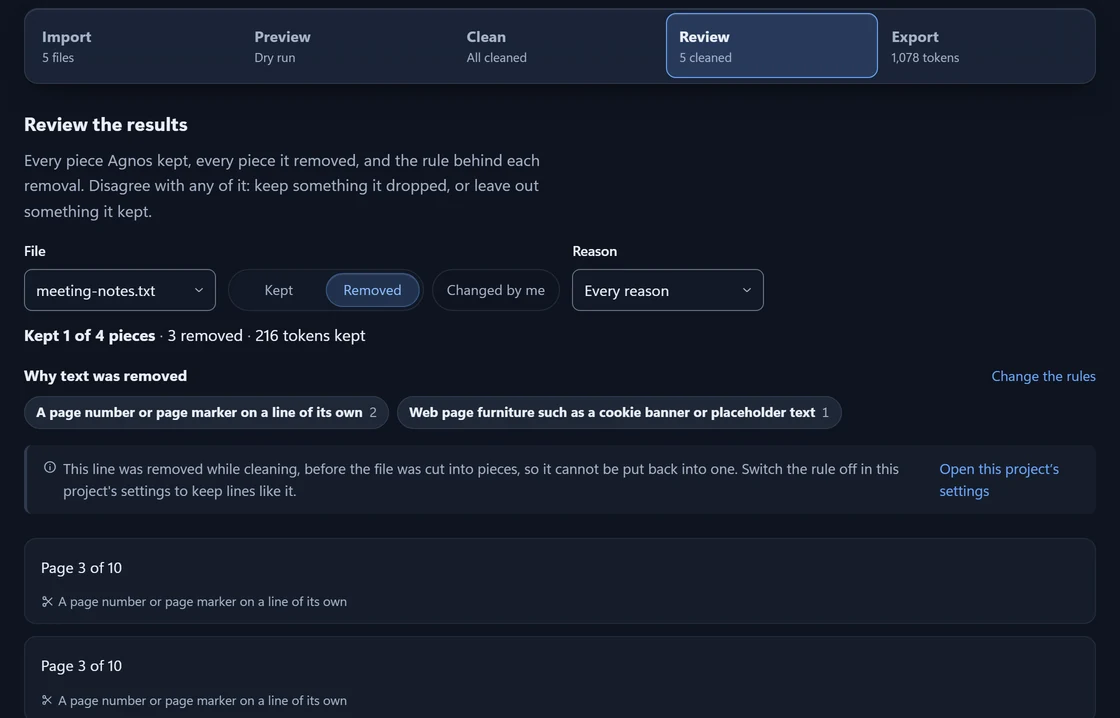
Why text was removed
On Removed, every piece names the rule that removed it. Why text was removed, above the list, counts the rules for the file; press one to show only its pieces.
A rule matches a shape of text, such as a line that is only a page number. A removal does not mean the text was worthless, and a kept piece is not guaranteed to be correct. That is why every removal names its rule: so you can disagree.
Review lists removals, not repairs. Mended characters, collapsed spaces and stripped HTML tags show in Preview's Before and After panes instead. Every rule and its setting is in Cleaning settings.
Keep or leave out
Each piece has one button:
- Keep this anyway
- On a removed piece. It goes into the next export, in the place it was cut from.
- Leave this out
- On a kept piece. It stays out of the next export.
- Undo
- Takes the button's place once you press it. The piece follows the rules again.
Your choices change what goes into the export, not the cleaning. Changed by me shows only the pieces you decided about.
A choice is tied to its text. If you clean the file again and that text is gone, Review says so; press Forget them to clear those choices, or leave them in case the text comes back.
Change the rules
Keep this anyway is for one piece. When a rule is wrong for a whole kind of document, change the setting instead.
Some removals cannot be put back one at a time: page numbers, repeated banners and cookie notices are removed as whole lines before the file is cut into pieces. These say so instead of offering Keep this anyway, and changing the setting is the only way to keep them.
Press Change the rules above the list.
In Essentials, under What gets removed, switch off the rule: Remove page furniture for page numbers, headers and footers, or Remove website boilerplate for cookie banners, “enable JavaScript” notices and lorem ipsum.
Press Save changes.
On the Clean step, press Clean them again.
Settings apply to this project only.
Test rules on a file
Try a file against the rules, at the bottom of Review, shows which rules would remove what from a file, and what you would get back by turning them off. Nothing is saved.
Drop a file on it, or click it to choose one.
Tick the rules you want to try turning off. Agnos says how many pieces would come back.
Press Apply these changes to turn them off in the project's settings.
Clean the files again.
Suggest the fewest changes finds the smallest set of rules to turn off so that at least 60% of the file survives. It is part of Pro and the 14-day trial.
Something here wrong or unclear? Tell us and we will fix the page.