Preview and clean
Try a project's settings on one file without saving anything, then clean every file for real.
Preview a file
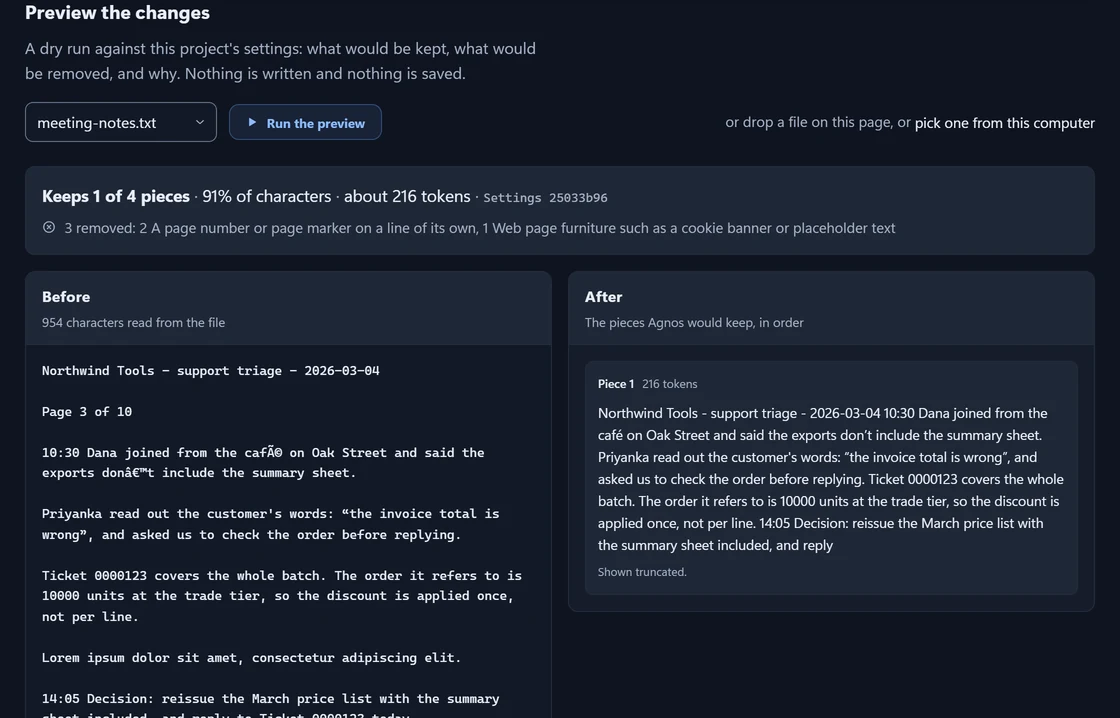
Preview is a dry run. It shows what the project's settings would keep and remove in one file, and why. Nothing is saved.
Choose Preview along the top of the project.
Choose a file.
Press Run the preview.
To try a file that is not in the project, drop it on the page. It is previewed, not added.
Reading the result
- Summary
- How much would be kept, and how many pieces each rule would remove.
- Before
- The text as read from the file, before cleaning.
- After
- The pieces Agnos would keep, in order.
- Show removed
- Every piece that would go, with the rule that removes it.
A long file or piece is shown cut short, but a real run reads all of it. To compare settings, change one, save it, and preview the same file again.
Choose a purpose
A purpose is a ready-made set of cleaning settings for one job. For example, RAG / Retrieval Corpus suits documents an AI tool will search and answer questions from (RAG).
You choose a purpose when you create a project. To switch later, open Settings and use What this project is for, in Essentials. Switching replaces the project's settings, and the old ones stay in History.
Every purpose is described in Cleaning settings.
Change the settings
Press Settings for this project at the top of a project. Each project has its own settings, so changing one never changes another.
- Essentials holds the settings that most change what you get: the purpose, how to split, piece size, and what gets removed.
- A setting you changed is marked, with a button that puts back the recommended value.
- Nothing is saved until you press Save changes (Ctrl + S).
- Press / to search every setting by name.
Saved settings apply to files you clean next. Files cleaned earlier are marked as out of date until you clean them again. What each setting does is in Cleaning settings.
Clean
Clean runs on this computer, one file at a time. Each file is read, tidied, cleared of clutter, cut into pieces, and each piece is checked and its tokens counted. Cleaning keeps going while you work elsewhere in Agnos, or with the window closed.
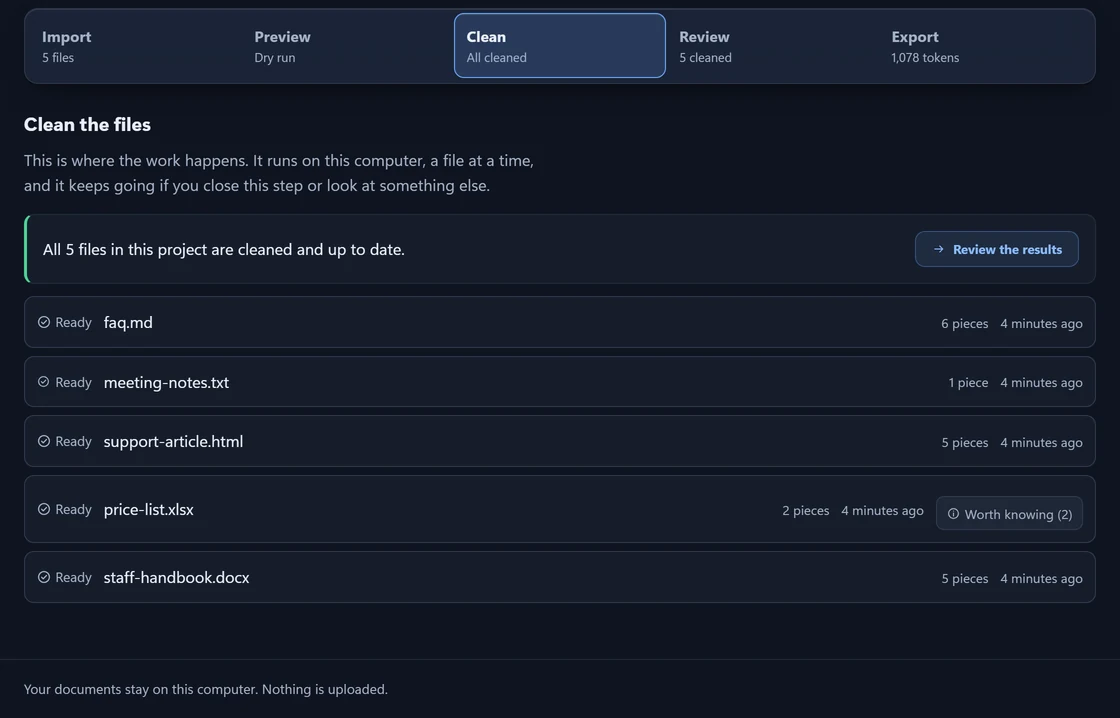
The line at the top says where the project stands and offers the next step:
| It says | What to do |
|---|---|
| Files are waiting to be cleaned. | Press Clean them. |
| Files were cleaned with older settings. | Press Clean them again. |
| A file did not come through. | Read the reason on its row, then fix the file or press Try again. |
| All files are cleaned and up to date. | Press Review the results. |
Each file has a row with its status. You can cancel a queued or running file. A file waiting in the queue is cleaned with the settings it was queued under.
Activity
Activity, in the menu, shows cleaning across all your projects.
- Now
- The file being cleaned and how far it has got. Stop ends the run. Files waiting behind it are under Up next.
- Finished
- Every run, newest first. A failed run has Retry; one you stopped has Run again.
If Activity says “Cleaning is paused”, open the Start menu, choose Stop Agnos, then open Agnos again; nothing waiting is lost. If a file “stopped reporting”, press Put back in the queue.
When a file is done, see what was kept and removed in Review.
Something here wrong or unclear? Tell us and we will fix the page.