Import documents
Add documents to a project. Agnos checks each file as it arrives and, unless you turn it off, cleans it straight away.
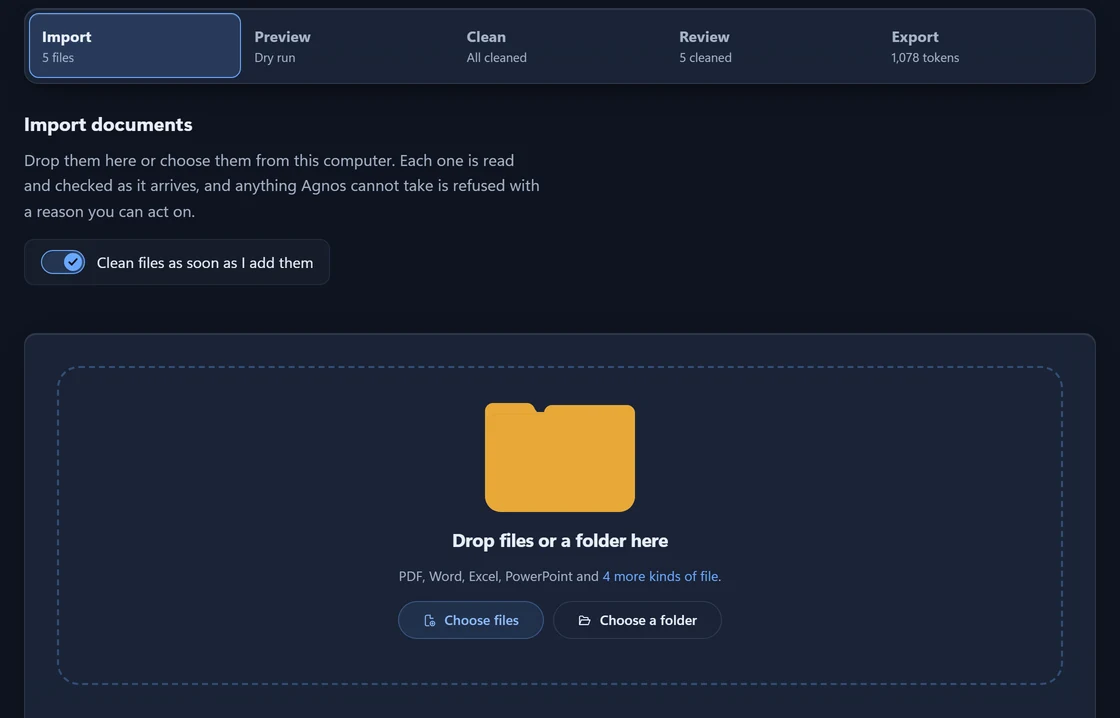
Add files or a folder
Files always go into a project. Open one from Projects, or start a new one (see Projects and settings).
Choose Import along the top of the project.
Drag files or a folder onto the drop box, or press Choose files or Choose a folder.
Wait for each file's card to go from Uploading to Cleaning to Ready.
“Uploading” means copying the file into your Agnos library on this computer. Nothing leaves the computer.
Adding a folder
From a folder, including its subfolders, Agnos adds every file it can read and tells you how many others it left out. It also skips hidden files, desktop.ini, Thumbs.db and the ~$ lock files Word leaves beside an open document.
Automatic cleaning
Clean files as soon as I add them, above the drop box, is on for a new project. Each file is cleaned with the project's settings as it arrives.
Turn it off to add everything first, preview a file and adjust the settings before anything is cleaned. Files then wait until you press Clean them on the Clean step.
What Agnos reads
Agnos reads PDF files with a text layer, Word, PowerPoint and Excel files, web pages, CSV, JSON and plain text, including source code. The full list and the size limits are in Supported files.
Refused files
Agnos refuses some files on purpose rather than turn them into nonsense: scanned PDFs, old Office formats such as .doc, images, archives, audio and video, programs, and password-protected files.
A refused file's card gives the reason and what to do instead. Every refused type is listed in Supported files.
The same file twice
A file with exactly the same contents as one already in the project is not added again; Agnos reuses the result it has. The same file can still go into another project and be cleaned with that project's settings.
Your cleaned files
Under the drop box, Your cleaned files lists the project's files. Each card shows the file's size, how many pieces it made, a quality score from 0 to 1, and its status.
| The card says | Meaning |
|---|---|
| Waiting, Cleaning, Ready | Not started, in progress, or finished with pieces to export. |
| No pieces | Cleaning kept nothing. Open the card, or Review, to see which rules removed the text. |
| Needs attention, Failed | The file could not be used, or the run broke. The card says why. |
| Worth knowing | Something Agnos did not read, such as a hidden sheet or speaker notes. The file is still Ready. |
- Press a card to compare the cleaned text with the original.
- The arrow on a card downloads that file's cleaned text.
- The bin deletes the file and everything made from it, without asking first.
Choose files for an export
An export takes every Ready file in the project, unless you pick some.
Tick the cards you want, or press Select ready.
Press Create export.
Export then says it holds only the files you ticked. To go back to the whole project, press Use every cleaned file there. See Export.
Something here wrong or unclear? Tell us and we will fix the page.